
Single Sign-On (SSO) and suitability for IPR 3.6
SSO Overview
Single Sign-On is a method of authentication using the same credentials from a local directory server using Directory Server Authentication where a single authentication provides access to multiple applications in different domains.
Conversely, Single Sign-Off is the action of signing out terminating access to multiple software systems in one go.
What are the benefits?
- Cure for password fatigue
- Eliminates password resets
- Ability to remove a leavers account
- Centralises the management, monitoring and auditing of security credentials
- Reduces the administrative overhead
- Cost savings
What are the risks?
- Single point of failure
- Denial of service
- Stolen credentials via insecure implementations
What is involved?
The identity provider (IdP): This enterprise maintains a directory of users ‘OUR CLIENT’
The service provider (SP): Software as a Service (SaaS) Google or Office365.
Identity federation allows a trust relationship to be defined so the SP can control user access based on authentication carried out by the IdP
An example would be a CLIENT using Google G Suite. The CLIENT acts as the IdP and Google as the SP.
IdPs can support multiple service provider connections, and SPs can use the same SAML solution to support multiple CLIENTS
How is it done without user credentials?
Security Assertion Markup Language (SAML) is a standard protocol for web browser Single Sign-On (SSO) using secure tokens. Encrypted sign-in tokens are passed from Identity Provider to a SaaS Service Provider. SaaS providers, such as Google and Microsoft support SAML as a way to secure user logins and enable a roll-out of SSO application access.
Adding an SSO user
On the IPR 3.6 Home screen click Administrate > Manage users from the Navigation Menu and under Users click Create User. The below screen then is displayed.
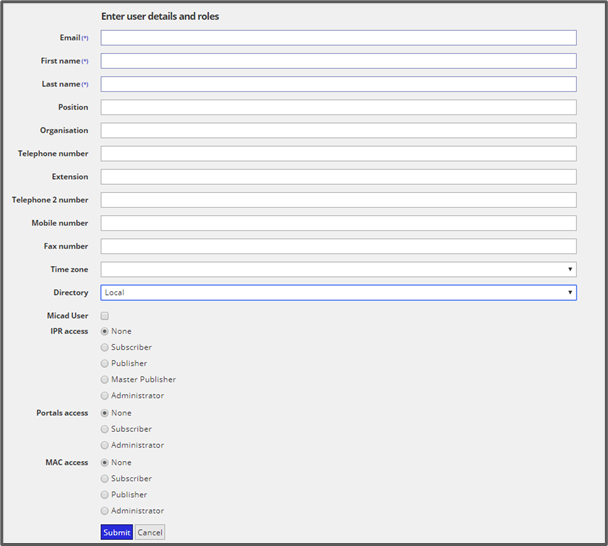
You will see that there is a Directory dropdown list (below) this shows the option to create a Local login (standard), Google login or Microsoft login. If you want the user to sign in with a Google or Microsoft Login, then the email needs to be a Google or Microsoft email address.

If you then fill in the User details and what access they need you can then submit this which creates the user account.
Establishing your first Single Sign-On
When an account has been created for you with a Google or Microsoft email address in IPR 3.6 there is now an ability to be able to sign in with your Google or Microsoft email address (SSO).
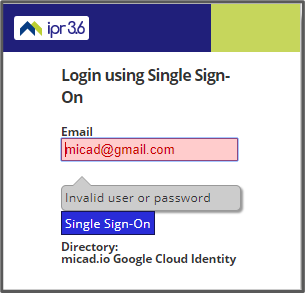
This is an example of signing in with a Google SSO for the first time.
First, enter your Gmail email address and leave the password blank then click Login.
Your SSO email address will be detected by IPR negating the need for a password. You will see the status switch to ‘Invalid user or password’. You just need to click on Single Sign-On.
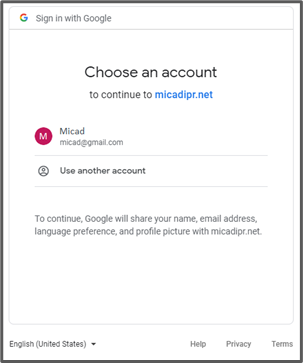
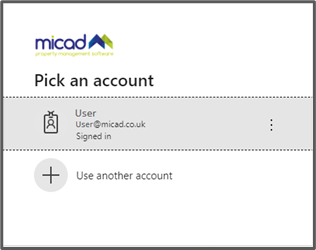
Google will then ask if you want to be able to log in to the Micad 3.6 website with your Gmail account (above left). The Microsoft login looks very similar (above right). If you then click on your account, it will then log you into IPR 3.6. Once you have linked you Google or Microsoft account with IPR 3.6 you will not be asked again which account you want to sign in with.
Single Sign-On
As you return to IPR, your browser will present you with your last login email address making the logon transaction swift and simple.
If you have logged in before with your Google or Microsoft account, the login screen will look like this.
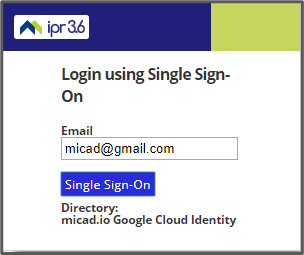
So, if you enter your email address in and click Single Sign-on then it will log you on to IPR 3.6.
Comments
0 comments
Please sign in to leave a comment.